
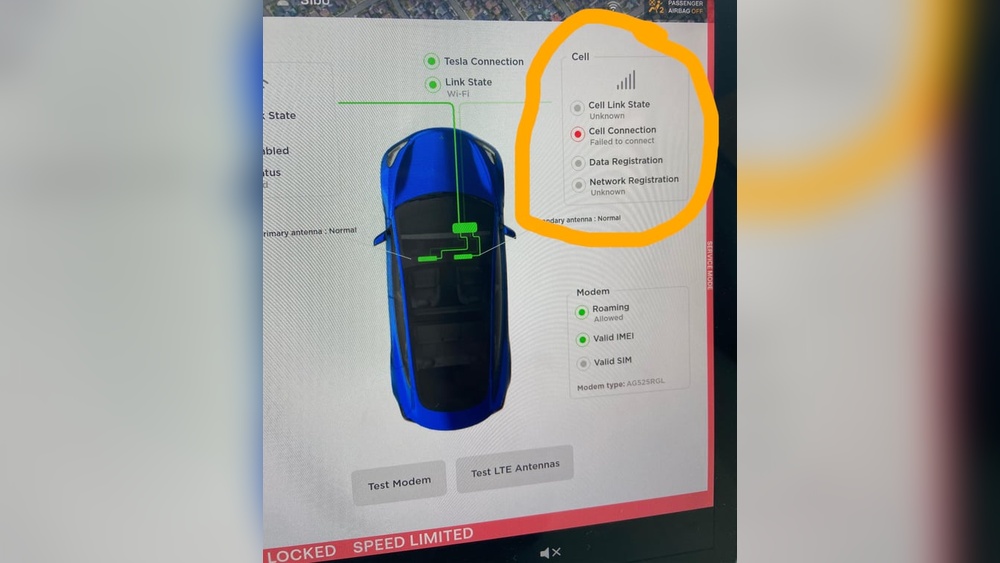
Have you ever found yourself staring at your Tesla’s screen, puzzled by the message “No Connectivity”? You’re not alone.
Imagine the frustration when your sleek, high-tech vehicle suddenly seems disconnected from the digital world. It’s like having a smartphone without internet access—limiting and inconvenient. You rely on your Tesla for navigation, entertainment, and crucial updates, so when connectivity issues arise, it’s not just a minor glitch; it’s a disruption to your everyday driving experience.
Understanding why your Tesla displays this message is key to regaining control and ensuring a seamless drive. Whether you’re commuting to work or on a weekend adventure, staying connected is essential for both convenience and safety. Let’s explore the possible reasons behind this connectivity issue and how you can resolve it, ensuring your Tesla remains the cutting-edge machine you know and love. Keep reading to discover actionable solutions that can get you back on track, maintaining the effortless driving experience Tesla is known for.
Common Connectivity Issues
Driving a Tesla offers a futuristic experience. But connectivity issues can frustrate. Understanding these common connectivity problems helps you address them effectively. Many Tesla owners face similar challenges. Here, we explore these issues. Find solutions to restore seamless connectivity.
Interference From Nearby Devices
Devices nearby may interfere with Tesla’s connection. Smartphones, tablets, and other electronics can cause disruptions. Identifying and reducing interference sources can improve connectivity.
Weak Cellular Signal
A weak cellular signal often disrupts Tesla’s connection. Areas with poor network coverage affect your car’s connectivity. Moving to a location with a stronger signal helps resolve this issue.
Software Glitches
Software glitches can impact connectivity. Regularly update your Tesla’s software. Updates often fix bugs and improve performance. Ensure your vehicle runs the latest software version.
Obstructed Antenna
An obstructed antenna reduces connectivity. Check if anything blocks the antenna. Clear any obstructions to enhance signal reception.
Server Outages
Tesla’s servers may experience outages. These outages affect connectivity. Stay informed by checking Tesla’s status updates. Patience is key during such times.
Wi-fi Connection Issues
Wi-Fi connection issues can disrupt your Tesla’s connectivity. Ensure your home Wi-Fi is stable. Restarting the router often resolves connectivity problems.
Understanding these issues helps maintain a smooth Tesla experience. Addressing them promptly ensures you enjoy the full potential of your car.

Credit: www.reddit.com
Causes Of No Connectivity
Experiencing no connectivity in your Tesla can be frustrating, especially when you’re relying on its advanced features for a seamless drive. Imagine planning a road trip, only to realize that your navigation system isn’t working due to connectivity issues. Understanding the causes behind this problem can help you troubleshoot and enjoy a smoother ride. Let’s dive into some common causes of no connectivity in your Tesla.
Software Glitches
Software glitches are one of the most frequent causes of connectivity issues in Teslas. Sometimes, a simple reboot of the system can resolve the problem. Have you tried restarting your Tesla’s touchscreen? It can often reset the connection and solve minor software-related hiccups.
Updating your Tesla’s software regularly is crucial. Tesla releases updates to fix bugs and improve connectivity. Make sure you have the latest version installed. If not, connect your car to Wi-Fi and perform the update.
Network Coverage
Your Tesla relies on cellular networks for connectivity. Poor network coverage can lead to disruptions. Are you in a remote area or an underground parking lot? These locations often have weak signals, affecting your car’s connectivity.
Consider using Wi-Fi as an alternative. If you’re parked at home or a location with Wi-Fi, connect your Tesla to improve its connectivity. It’s a practical way to ensure you have access to necessary features even when cellular coverage is spotty.
Hardware Malfunctions
Hardware malfunctions, though less common, can also lead to no connectivity in your Tesla. Have you checked your car’s antenna? A damaged or loose antenna can disrupt the connection.
Another potential hardware issue could be the modem. If you suspect a hardware problem, it might be time to visit a Tesla service center. They can diagnose and fix the issue, ensuring your Tesla’s connectivity is back to its optimal state.
Have you ever encountered these issues with your Tesla? Understanding these causes can help you address the problem more effectively and enjoy a hassle-free driving experience. Always stay proactive with software updates, be mindful of your location, and don’t hesitate to seek professional help if needed.
Troubleshooting Steps
Experiencing connectivity issues with your Tesla can be frustrating. Understanding how to troubleshoot these problems can help restore your vehicle’s connectivity. Here are some effective steps you can take to resolve the issue and get back on the road with peace of mind.
Restarting The Vehicle
Restarting your Tesla is the first step. This simple action can resolve many connectivity issues. To restart, press the brake pedal. Hold it down while pressing and holding both scroll wheels on the steering wheel. Keep them held until the screen resets. This takes a few seconds. Once the restart is complete, check for connectivity.
Checking Network Settings
Ensure your Tesla is connected to a reliable network. Open the settings menu on the touchscreen. Navigate to the Wi-Fi section. Check if the network is active and connected. If it’s not connected, select your network from the list. Enter the password if needed. A stable network connection is vital for proper functionality.
Updating Software
Software updates can fix connectivity bugs. Check if your Tesla needs an update. Open the settings menu. Look for the software section. If an update is available, follow the prompts to install it. This process might take some time. Ensure your vehicle is parked and has a strong network connection during the update.

Credit: www.reddit.com
Tesla Support And Resources
When your Tesla displays “No Connectivity,” frustration can set in quickly. Fear not, as Tesla offers various support and resources to help. Understanding these options can assist in resolving connectivity issues. Let’s explore how Tesla support and resources can be your guide.
Contacting Tesla Support
Reaching out to Tesla Support can offer direct assistance. They provide knowledgeable help for connectivity issues. Use their official website to find contact options. You can email or call for support. Their team is trained to diagnose and resolve issues efficiently. Always have your vehicle’s details handy. This helps in quicker resolution.
Using The Tesla App
The Tesla App is a powerful tool for troubleshooting. Log in to the app for real-time updates on your vehicle. It provides alerts and notifications that may explain the connectivity problem. The app also contains a help section with useful tips. This can often solve minor issues without further help.
Exploring Online Forums
Online forums are a treasure trove of shared experiences. Tesla owners often share solutions to common problems. Visit reputable forums to learn from others’ experiences. Engage with the community to get advice tailored to your situation. Forums can be a quick way to find fixes from fellow Tesla enthusiasts.
Preventive Measures
Experiencing connectivity issues with your Tesla can be frustrating. Addressing these issues beforehand can save time and stress. Implementing preventive measures ensures your Tesla remains connected seamlessly.
Regular Software Updates
Keeping your Tesla’s software updated is essential. Tesla releases updates to fix bugs and improve connectivity. Check for updates regularly. Ensure your car connects to Wi-Fi for smooth updates. This step helps in reducing connectivity issues.
Network Provider Alternatives
Your network provider may affect your Tesla’s connectivity. Consider exploring different providers. Some networks offer better coverage in certain areas. Choose a provider with strong signals in your location. This choice can improve your car’s connection.
Routine Maintenance Checks
Regular maintenance checks can prevent connectivity problems. Inspect antenna connections and signal receivers. Ensure they are clean and functioning well. Conducting these checks regularly can enhance your Tesla’s performance. Stay proactive to avoid unexpected issues.
Credit: teslamotorsclub.com
Frequently Asked Questions
Why Is My Tesla Connectivity Not Working?
Tesla connectivity issues may arise due to poor signal, software glitches, or outdated firmware. Ensure you have a strong network connection. Restart your vehicle or check for software updates. If problems persist, contact Tesla support for assistance. Regular maintenance can prevent connectivity disruptions.
How Do I Turn On Connectivity In Tesla?
To enable connectivity in your Tesla, navigate to the touchscreen. Select ‘Settings,’ then ‘Wi-Fi,’ and connect to your network. Ensure mobile data is activated for uninterrupted service. Check for software updates regularly for optimal performance.
How To Reset Tesla Network Connection?
To reset the Tesla network connection, go to the touchscreen and select ‘Controls’. Tap ‘Software’, then ‘Reset Network Settings’. Follow on-screen prompts to complete the reset process. This ensures optimal connectivity for updates and navigation. Always ensure your Tesla is in a safe location when performing this reset.
How Do I Force My Tesla To Connect To Wi-fi?
Go to the car’s touchscreen, tap “Controls,” then “Wi-Fi Settings. ” Choose your network and enter the password.
Conclusion
Understanding why your Tesla says “No Connectivity” is crucial. Connectivity issues can stem from several factors. These include software glitches, network problems, or hardware issues. Regular updates and checks can help resolve these problems. Always ensure your Tesla’s software is up to date.
A stable internet connection is essential for optimal performance. If problems persist, reaching out to Tesla support can provide solutions. Staying informed about your car’s connectivity can enhance your driving experience. So, keep an eye on updates and maintain your vehicle regularly.
This ensures a seamless Tesla experience every time you drive.